
How to Take Screenshots with Keyboard Shortcuts (Mac & Windows)
Learn how to capture, annotate, and share screenshots instantly using keyboard shortcuts without ever touching your mouse.
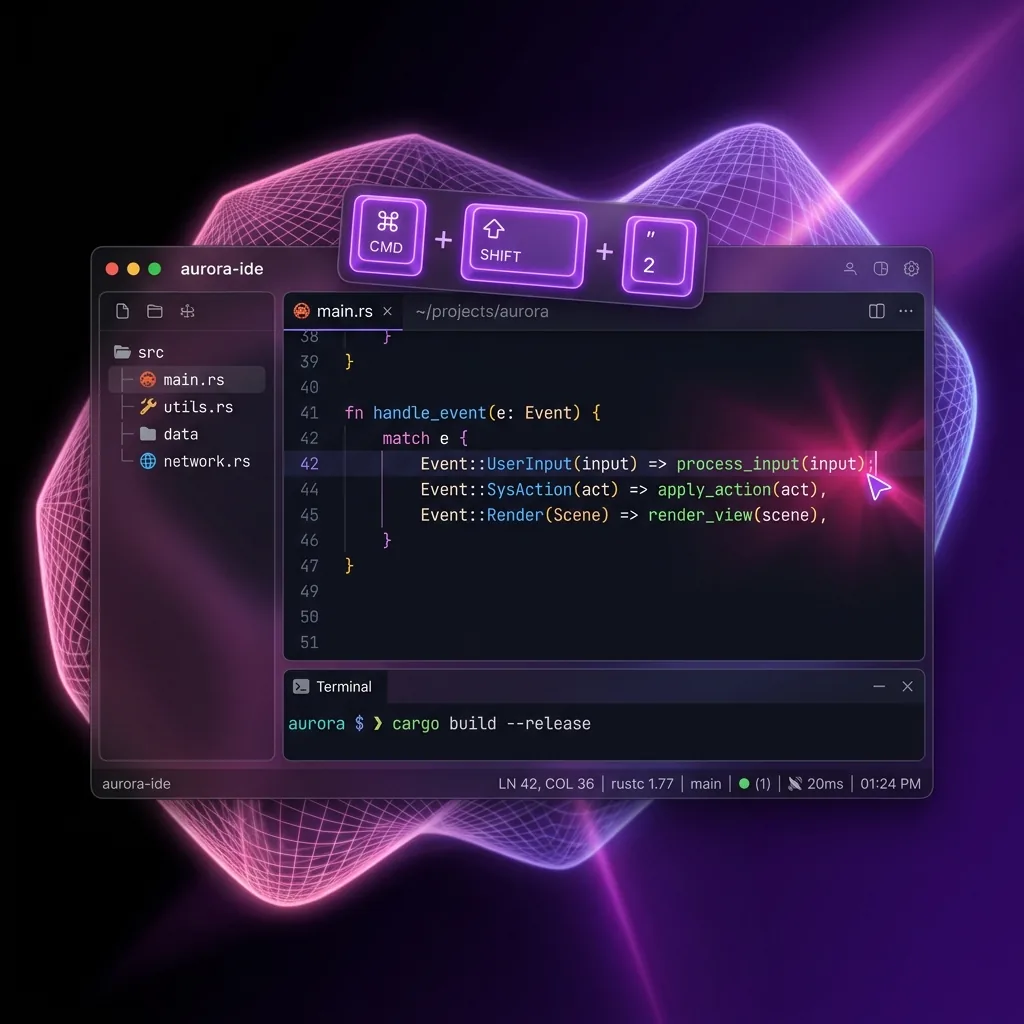
As a developer, your hands are already on the keyboard. Reaching for the mouse to take, edit, and share a screenshot is friction you don't need.
The built-in defaults, and why they fall short
macOS gives you Cmd+Shift+4 and Windows gives you Win+Shift+S. Both work for the occasional grab, but they save files with generated names, know nothing about the page you captured, and hand editing off to another app.
Supashot's shortcuts keep the whole loop inside the browser:
| Shortcut | Action | |----------|--------| | Cmd/Ctrl + Shift + S | Capture a region | | Cmd/Ctrl + Shift + V | Capture the visible tab | | Cmd/Ctrl + Shift + F | Capture the full scrolling page | | Alt + Shift + R | Start or stop a screen recording |
No save prompt at any point. The capture goes straight to the editor and your library.
The five-second bug report
- Press Cmd/Ctrl+Shift+S and select the broken area.
- Annotate if needed, then copy.
- Paste into Slack, Jira, or the GitHub issue.
That's the whole loop, and you never left the browser.
Annotating for clarity
Some captures need direction before a reviewer can act on them. Draw an arrow at the element in question, blur API keys or personal data, or put a one-line explanation directly on the image. All of it happens in the built-in editor, so nothing gets handed off to an external tool. For standalone annotation, the Add Text to Image tool and Blur Image tool work the same way in your browser with no upload.
The documentation workflow
Writing docs? Capture each step with the same shortcut, crop to the relevant component, and paste into Notion, Confluence, or Markdown. Everything is saved to the local browser timeline in case you need the earlier steps again. If you need to combine multiple screenshots into one page, the Combine Images tool merges them side-by-side or stacked. For PDF exports, the Image to PDF Converter builds a document from your captures.
Finding old captures
Three weeks later, a teammate asks about that API response you screenshotted from the AWS console. Instead of scrolling through Slack history, open the Supashot library, type aws.amazon.com in the domain filter, and every capture from that console appears.
Why keyboard-first matters
Every mouse detour is a small context switch. When capture, annotation, and recall all sit behind shortcuts, a bug report or doc update never turns into an app-hopping exercise.
Supashot is built around that idea, and everything stays local while you use it.
Install the Chrome extension if you want your shortcuts to do the heavy lifting.
Related guides
How to Take a Screenshot
How to take a screenshot on Mac, Windows, and in your browser — built-in shortcuts first, then why a dedicated browser extension is the best way to capture web pages.
How to Organize and Search Your Browser Screenshots
Stop losing your screenshots in messy folders. Learn how to automatically organize and instantly search your screen captures by website domain.