
How to Take Private Screenshots Without Cloud Uploads
Protect your sensitive data by using a local-first screenshot tool. Learn how Supashot keeps your screen captures secure and private in your browser.
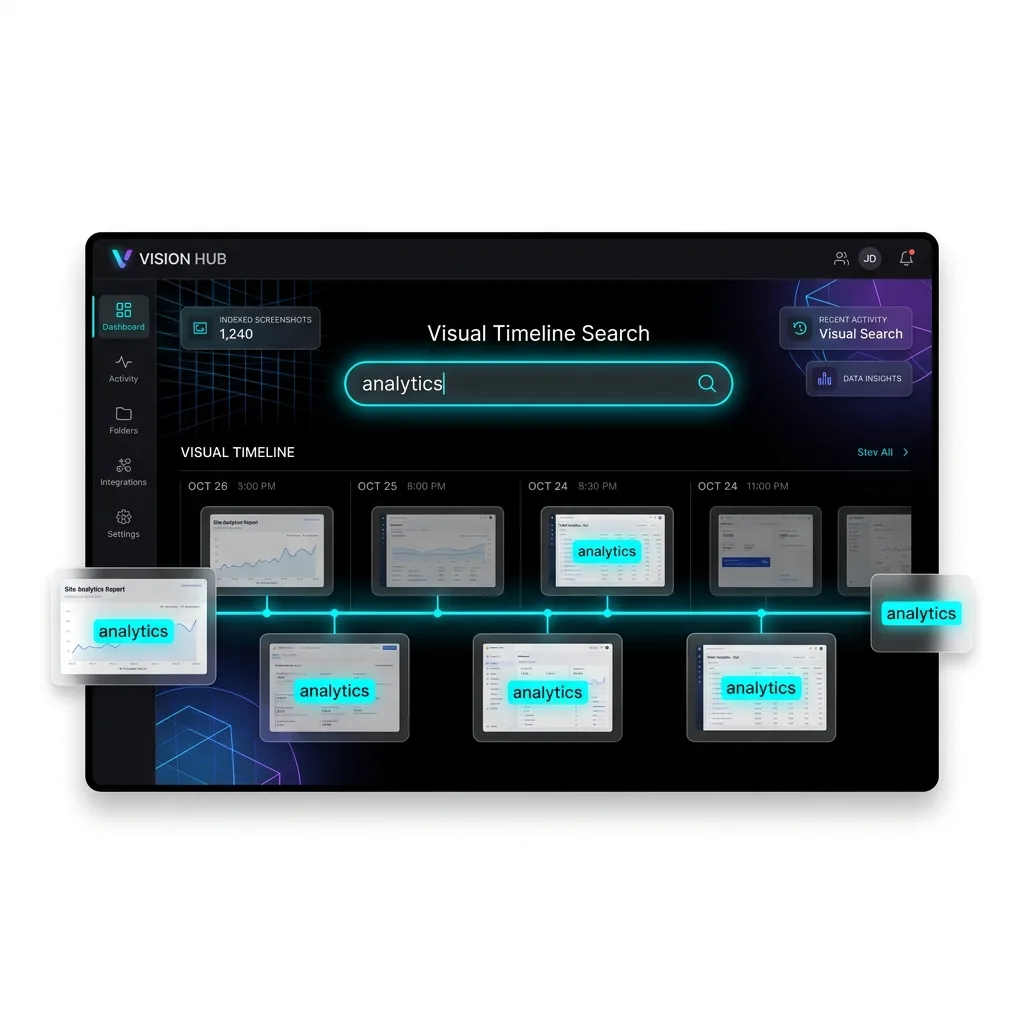
Most screenshot tools that offer a library do it by uploading your images to the cloud, processing them on a server, and storing them remotely. That works, but it comes with privacy trade-offs.
Supashot takes a different approach: local-first storage using your browser's built-in IndexedDB.
Why local-first matters
Your screenshots contain sensitive information:
- API keys and tokens in developer consoles
- Private messages and emails
- Internal dashboards and analytics
- Unreleased product designs
Uploading all of this to a cloud service creates a security surface area you may not want.
How it works
When you capture a screenshot with the Supashot Chrome Extension, it:
- Grabs the visual data using sandboxed browser APIs.
- Saves the PNG and its metadata (like the website domain and timestamp) into your local IndexedDB using Dexie.js.
- Makes the screenshot instantly available in your local library timeline.
All of this happens inside your browser. The screenshot data itself never touches a server. For quick one-off edits without the extension, our Blur Image, Pixelate Image, and Image Compressor tools all run 100% locally in your browser.
The technical stack
- Manifest V3, so capture runs inside the browser sandbox rather than a native app
- IndexedDB (via Dexie.js) holds the screenshot library on your disk
- Image encoding runs in a separate offscreen document, keeping page interactions smooth
The privacy guarantee
Because everything is local:
- We cannot see your screenshots.
- We cannot see your browsing history.
- We cannot lose your data in a breach.
- You do not need an account to use the core features.
Your visual memory stays on your machine, where it belongs.
Need to convert images locally?
Convert your screenshots and images to PDF files 100% locally in your browser. No files are ever uploaded, keeping your sensitive documents completely secure.
If that trade sounds right, the Supashot Chrome extension installs in one click and keeps your captures on your device.
Related guides
How to Record Your Screen and Webcam Simultaneously on Chrome
How to Take a Scrolling Screenshot of an Entire Webpage
How to Take a Screenshot
How to take a screenshot on Mac, Windows, and in your browser — built-in shortcuts first, then why a dedicated browser extension is the best way to capture web pages.